In Windows, you can create your own keyboard shortcuts to launch frequently used programs or to open commonly used files and folders, as long as there is already a shortcut icon to it.
If you are not sure what a shortcut is, a shortcut is an icon which links to a program, file or folder on your hard disk. Windows differentiates shortcuts from the actual files by adding a small arrow in the corner of shortcut icons (exception: most, if not all icons in the Start menu are shortcuts, however they do not have the small arrow). In this picture on the right, the icon on the left is the
actual Photos folder, whereas the icon on the right is a
shortcut to the Photos folder on the left. Double-clicking on either icon will open the Photos folder. Deleting the shortcut will not delete the Photos folder; deleting the Photos folder will break the shortcut (there is nowhere for the shortcut to point to). Also you can rename the shortcut to anything you like, say "Open Photos folder", but if you rename the original Photos folder, the shortcut will break too.
With that in mind, let's get to the part where we create the keyboard shortcuts:


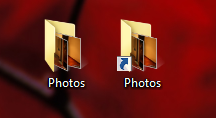
 If you are not sure what a shortcut is, a shortcut is an icon which links to a program, file or folder on your hard disk. Windows differentiates shortcuts from the actual files by adding a small arrow in the corner of shortcut icons (exception: most, if not all icons in the Start menu are shortcuts, however they do not have the small arrow). In this picture on the right, the icon on the left is the actual Photos folder, whereas the icon on the right is a shortcut to the Photos folder on the left. Double-clicking on either icon will open the Photos folder. Deleting the shortcut will not delete the Photos folder; deleting the Photos folder will break the shortcut (there is nowhere for the shortcut to point to). Also you can rename the shortcut to anything you like, say "Open Photos folder", but if you rename the original Photos folder, the shortcut will break too.


